
How to use Timeline.
Timeline is the step editor for recorded workflows. It opens a recording folder, shows the step list with images, and lets you tune actions, delays, AI prompts, and attachments before saving back to log.json.
python main/timeline.py and pick a folder from recordings/.
Edit a recording
Load a recording folder, select steps, and refine their fields.
Launch Timeline
Open main/timeline.py or your packaged tool.
Load a recording
Click Load and select a folder that contains log.json.
Select a step
Pick the row, then use the correct tab to edit the behavior for that step. Each tab targets a different type of action (keys, delays, AI checks, memory flags, external tools, input capture, read/write timing, or wipe mode).
Tune delays
Use the delay before and after fields to fine-tune timing.
Reorder or duplicate
Drag steps, multi-select, copy, paste, duplicate, or delete.
Save changes
Click Save to write updates back to the same recording folder.
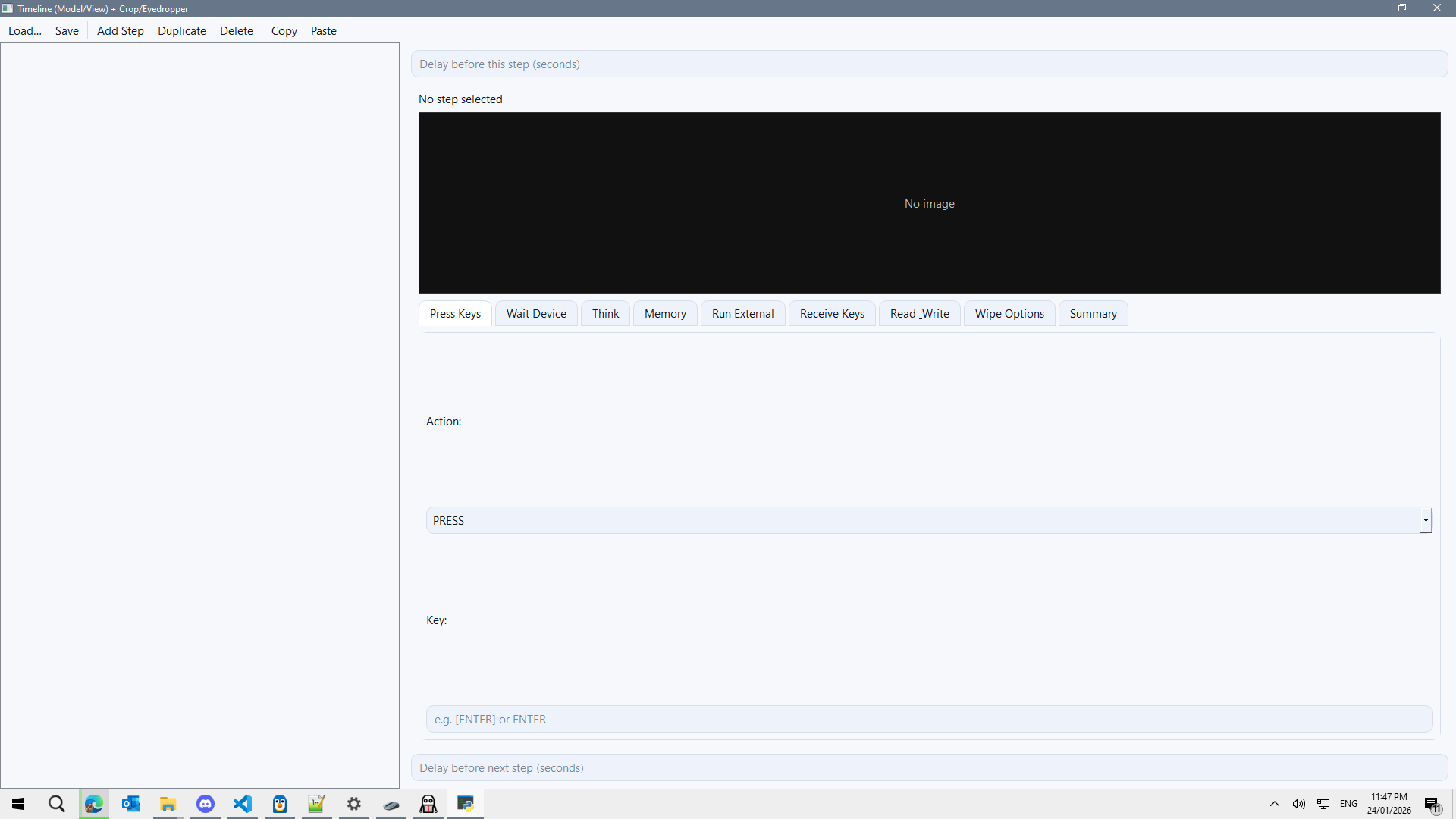
- Correct a key or delay.
- Add a Think prompt and branch steps.
- Insert a Memory marker.
- Update a step image.
Tabs and what they do
Each step belongs to a tab. The tab decides how the step behaves during playback.
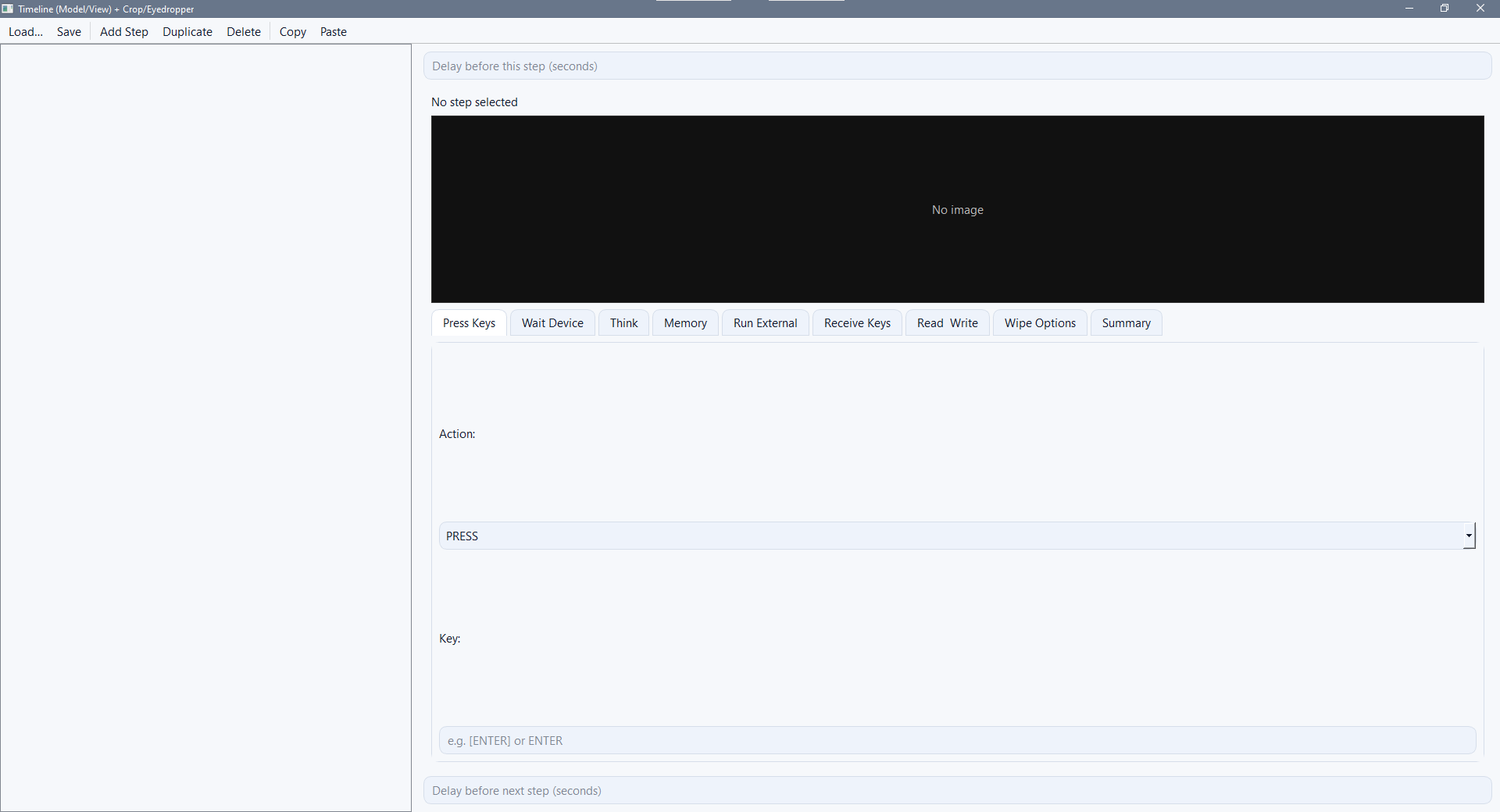
Press Keys
How to use: Choose PRESS for a tap or DOWN/UP for holds, then set the key value (e.g., ENTER, [F12]).
Typical use: Navigate BIOS menus and confirm selections.
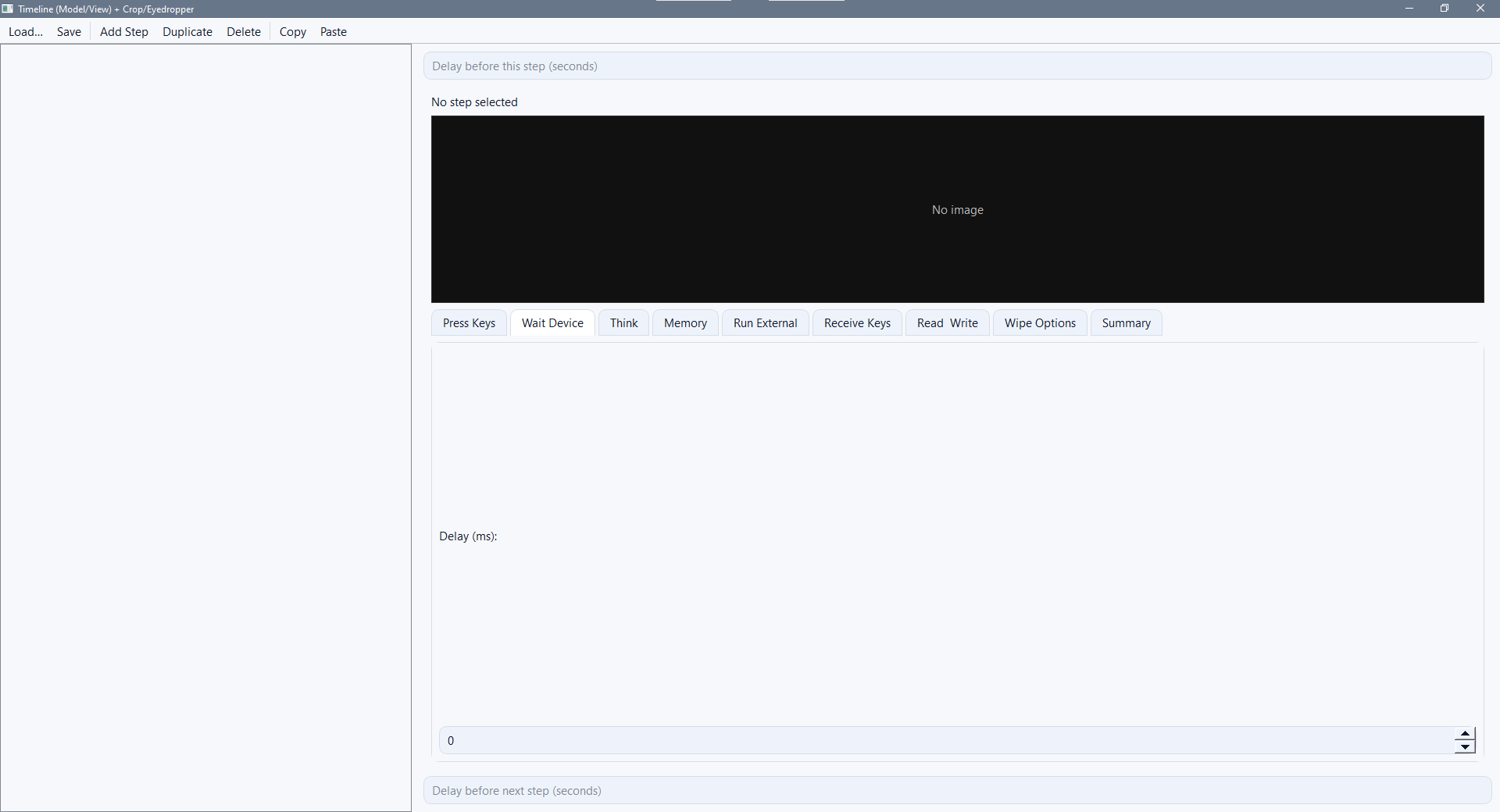
Wait Device
How to use: Set a pause before the next step to let the device catch up.
Typical use: Slow boots, BIOS delays, or menu rendering time.
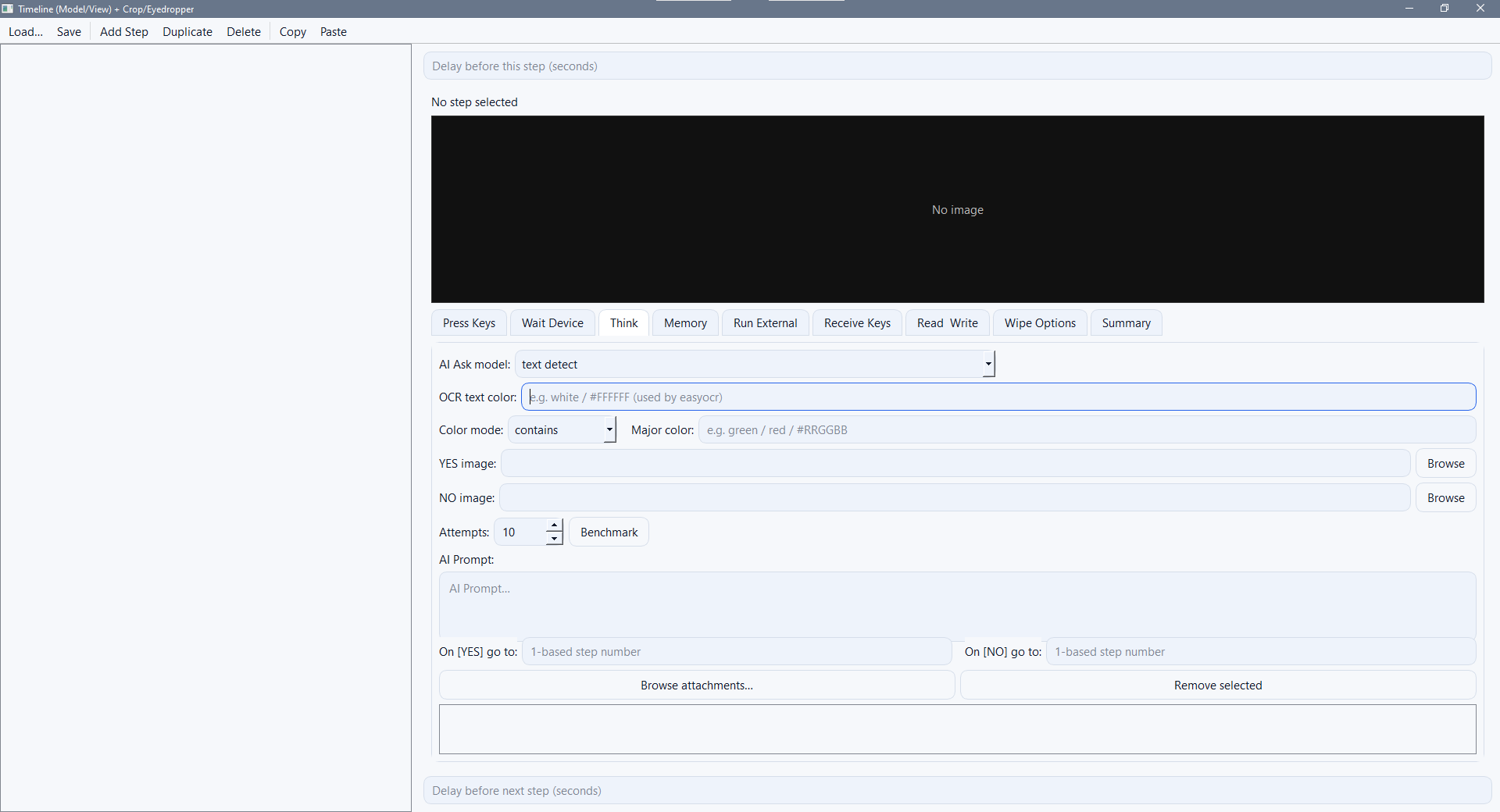
Think
How to use: Add a prompt, select the model, attach YES/NO images, and set branch steps.
Typical use: Detect screens, verify states, and route to the right branch.
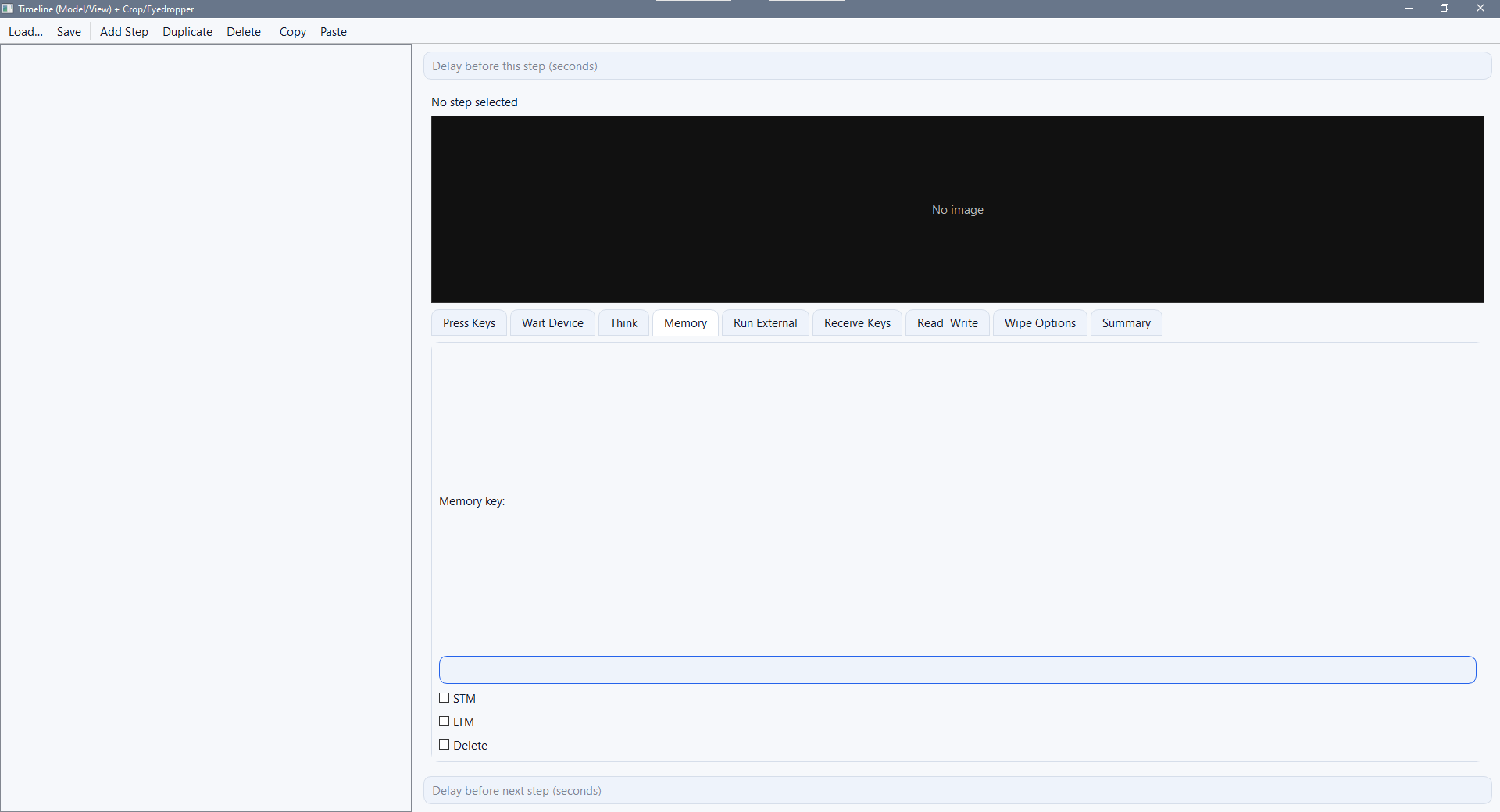
Memory
How to use: Set a key with STM/LTM flags or delete a key when the state changes.
Typical use: Persist a detected model, stage, or operator decision.
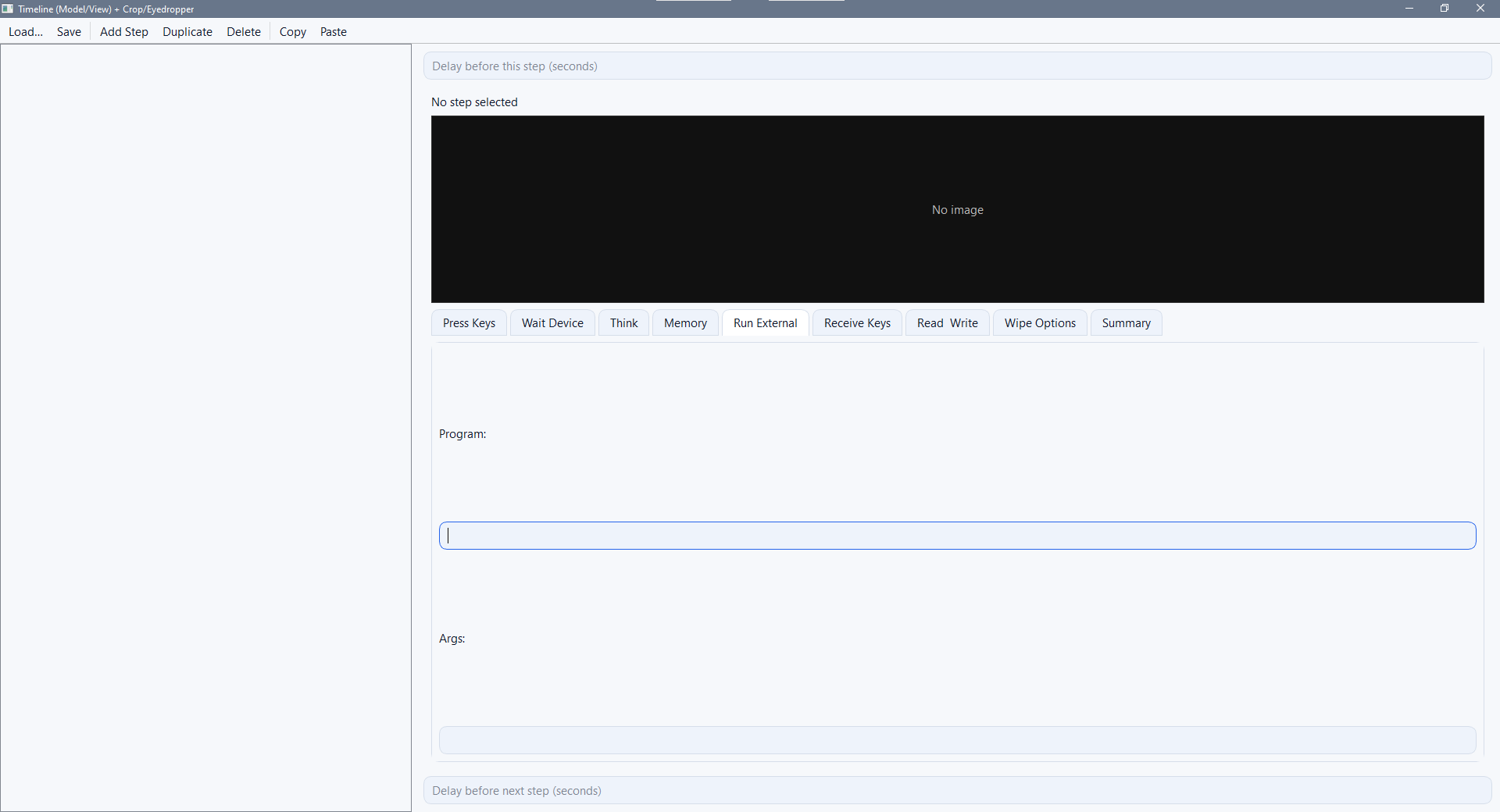
Run External
How to use: Choose a program and optional arguments to launch.
Typical use: Vendor tools, diagnostics, or cleanup scripts outside replay.
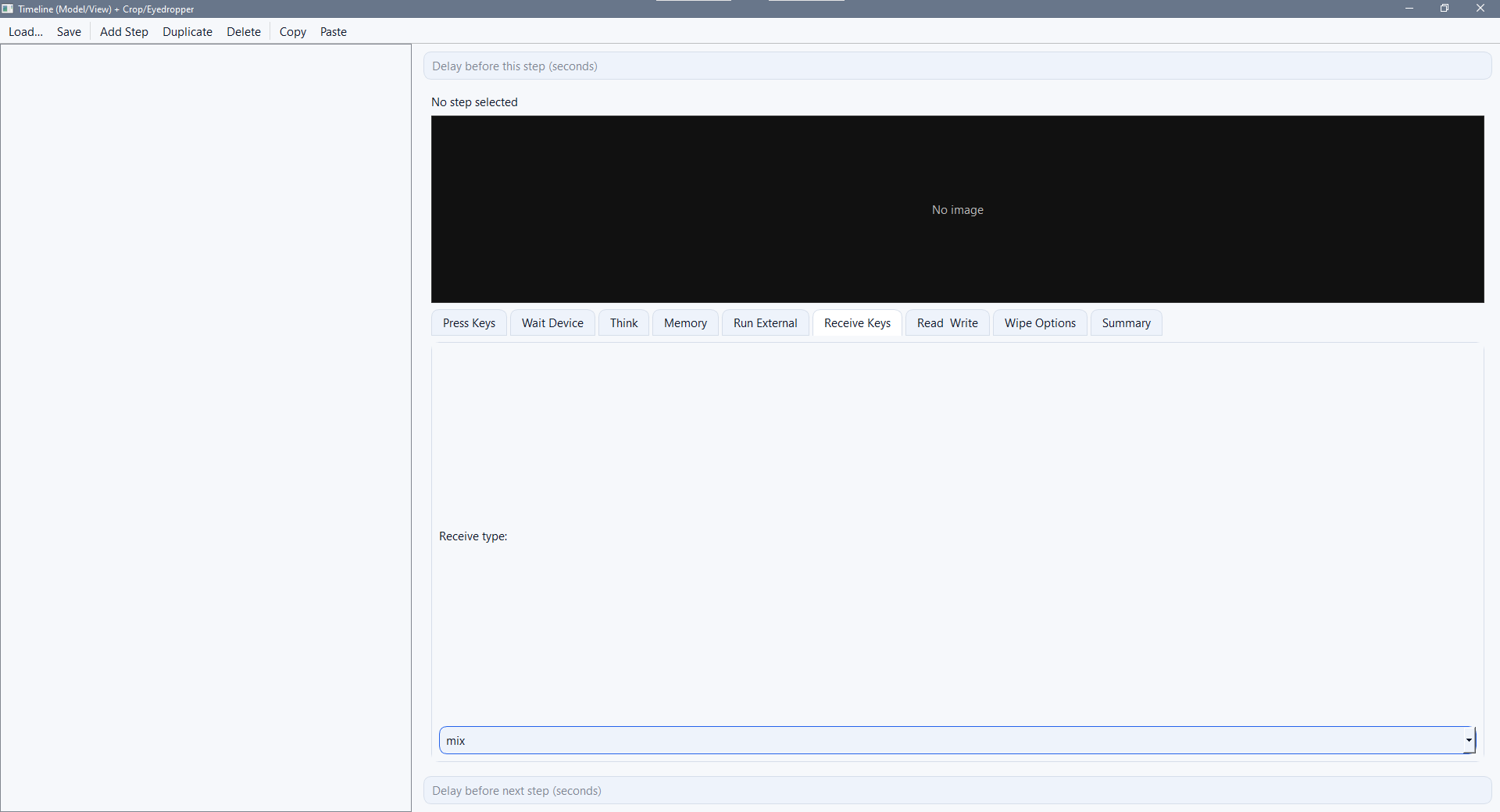
Receive Keys
How to use: Select a capture type (mix, numeric, alpha) and prompt the operator.
Typical use: Service tags, serials, asset IDs, or passwords.
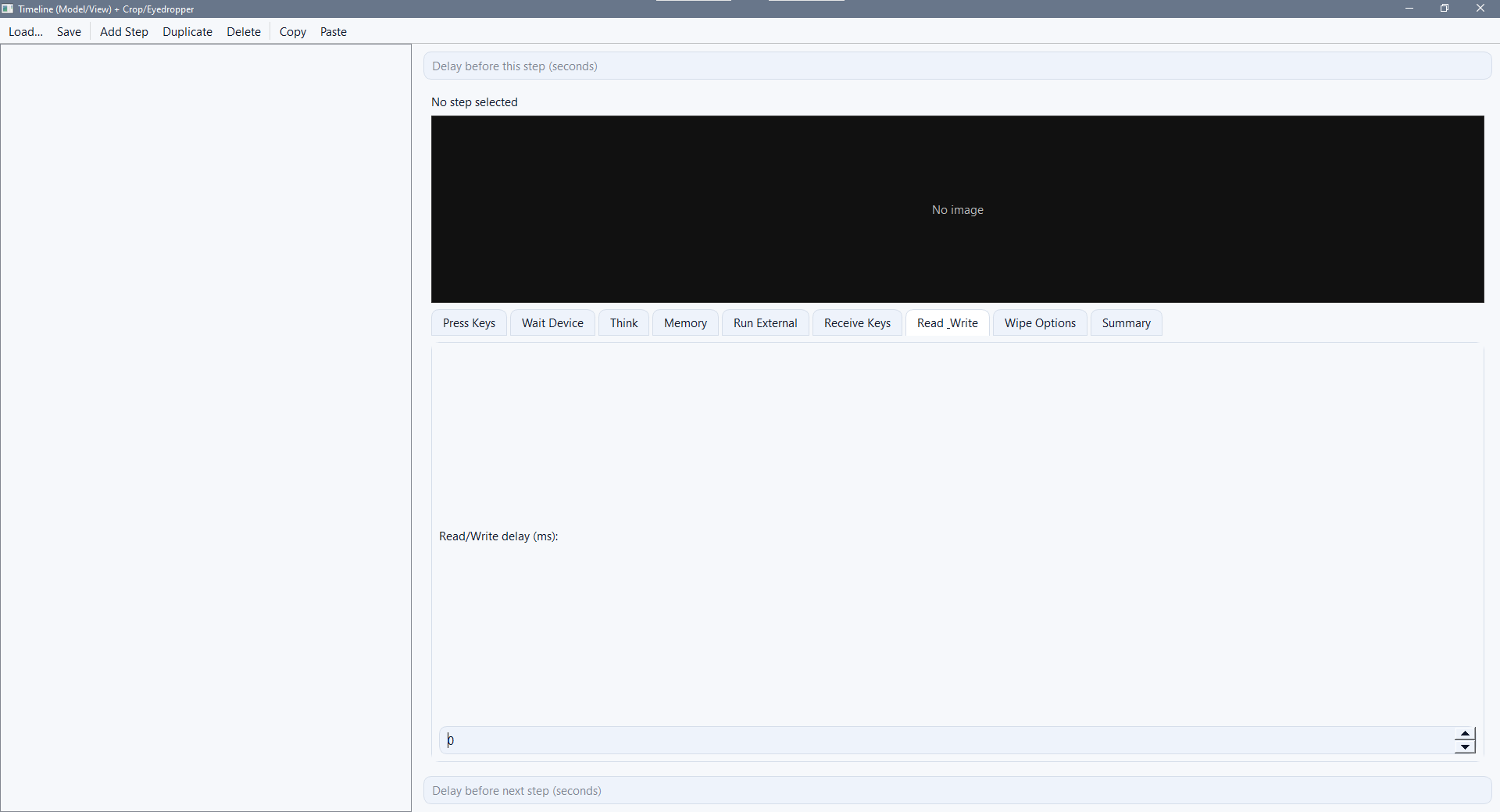
Read & Write
How to use: Set the read/write delay to pace a capture-and-type sequence.
Typical use: Screens where reads must settle before a write.
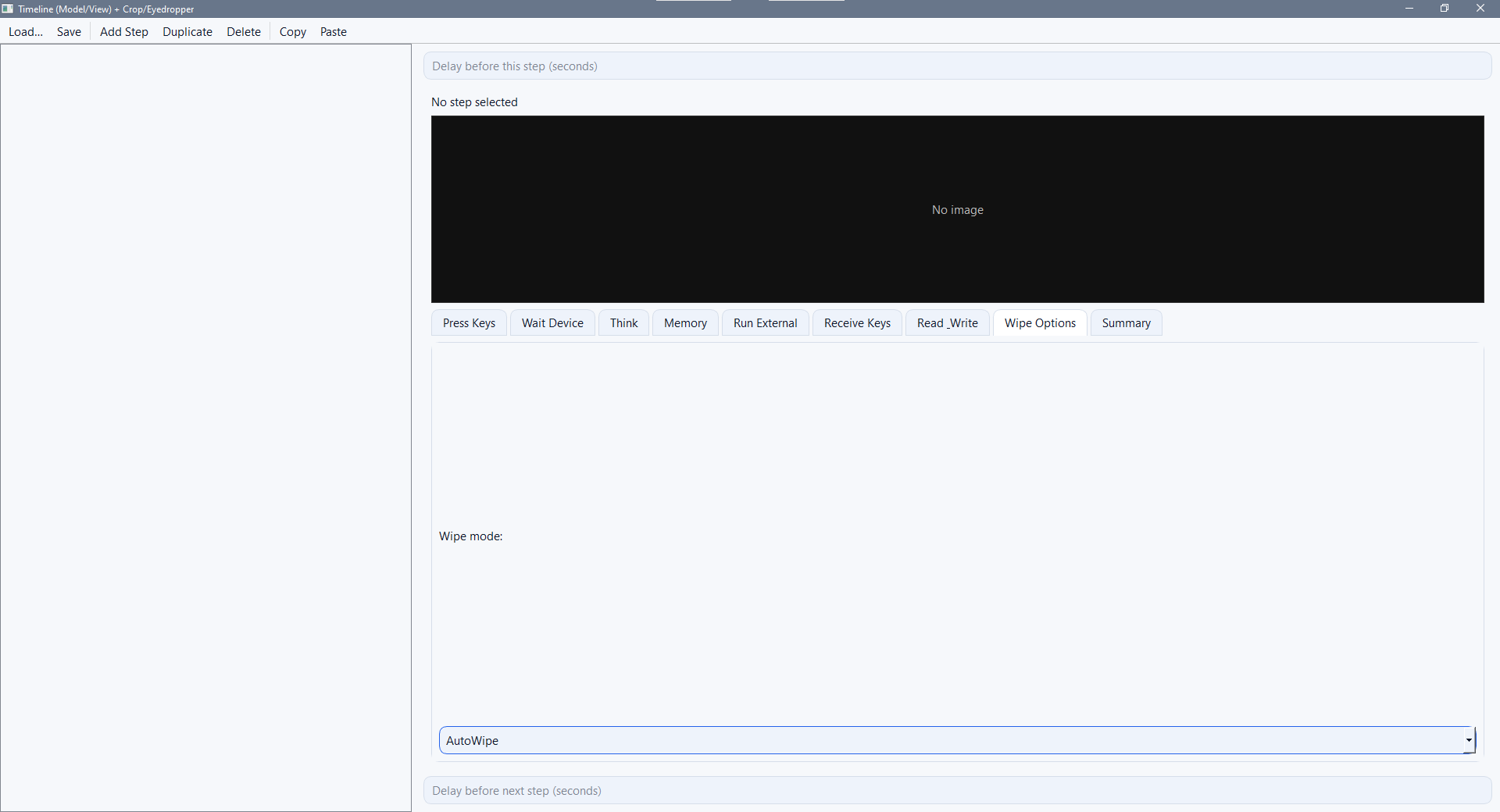
Wipe Options
How to use: Pick the wipe system used for this run.
Typical use: Reporting and compliance (AutoWipe, Blancco, etc.).
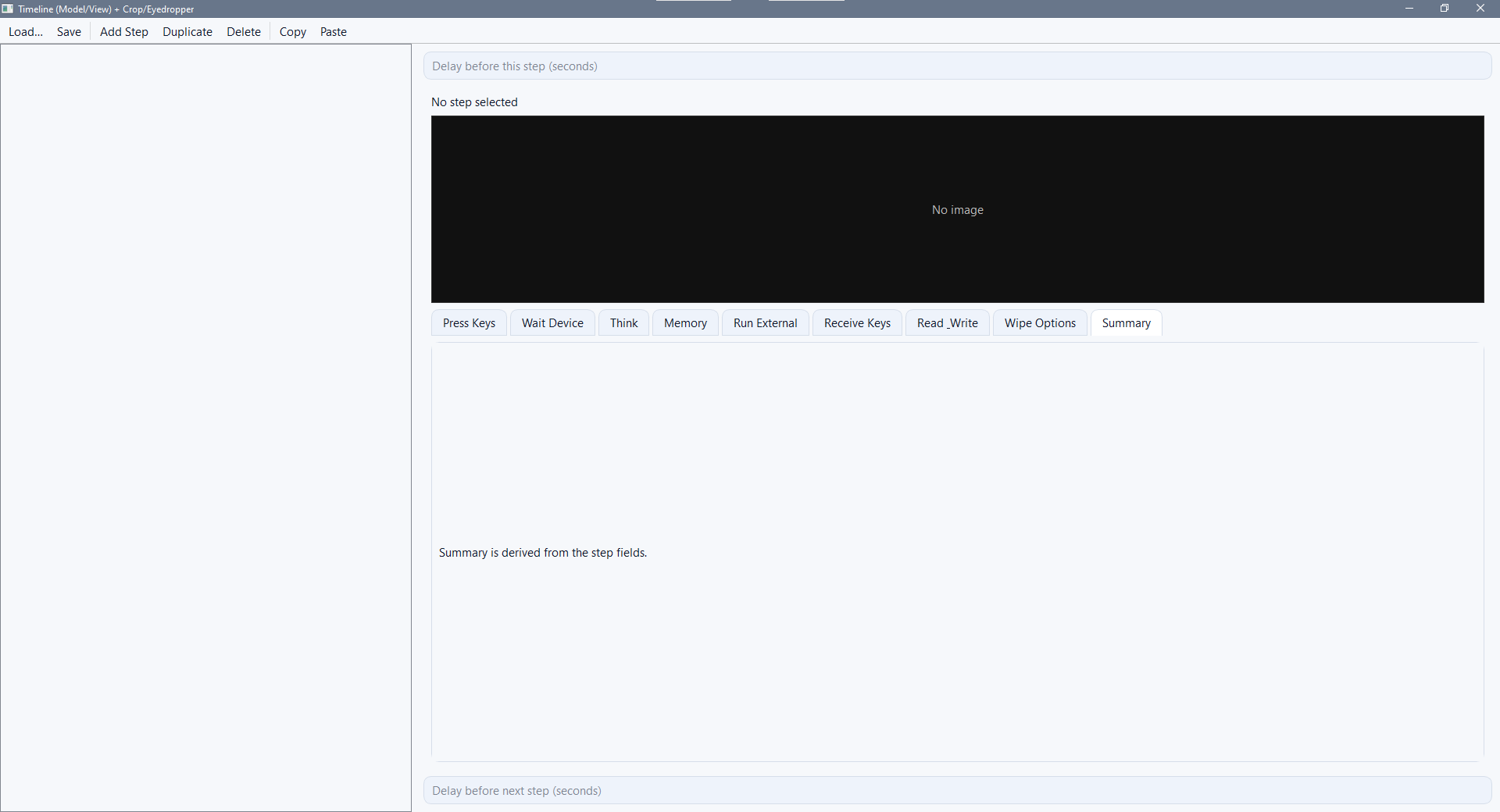
Summary
How to use: Review the computed summary for the selected step.
Typical use: Quick validation of actions, delays, and branch targets.
Image tools and AI prompts
Use the preview, crop, and color picker to make AI decisions reliable.
Right-click the preview
- Change the step image if the frame is wrong.
- Crop a small region to focus AI checks.
- Use the eyedropper to capture a color code.
- Attach YES and NO images for Think prompts.
- Run Benchmark to test the prompt before saving.
howto/timeline/crop.png
Set the AI model, prompt, YES/NO images, and branch steps so operators have clear paths forward.
Save and verify
Keep the recording clean so operators see predictable behavior.
Checklist
- Click Save after edits.
- Re-open the recording to confirm the list looks right.
- Play the workflow to validate timing and prompts.
- Update screenshots in this guide for new operators.
howto/timeline/save.png
If a step changes the path, update the YES and NO branch targets to keep navigation safe.