
How to access the database.
Auto Applier stores workflow, wipe, and grading information in a local SQLite file. This guide shows what is inside, where to find it, and how to import tables into Excel for clients.
AutoKeyboard/autokeyboard.db
Database contents
A quick map of the tables clients usually ask about.
Core tables
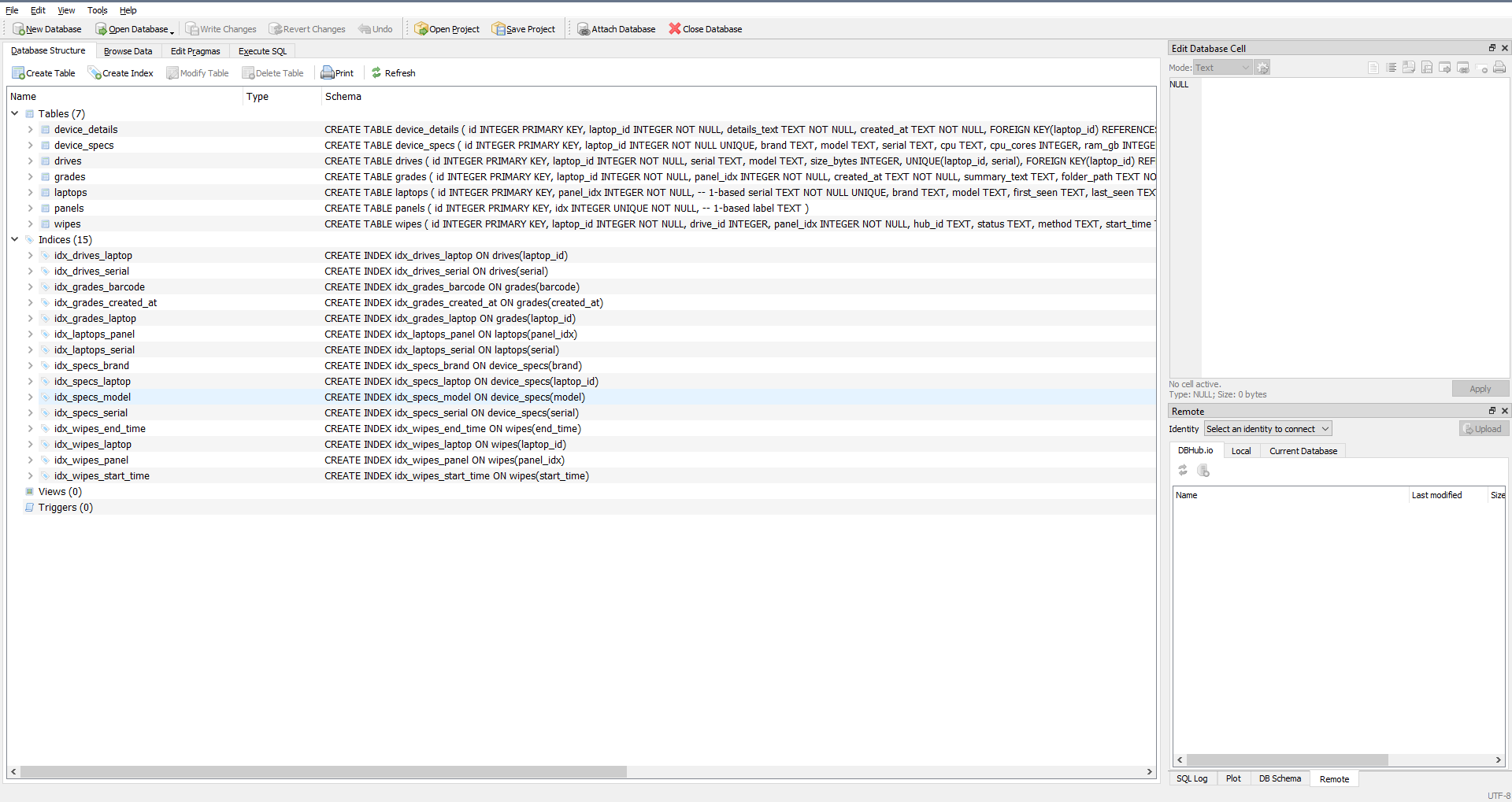
- laptops - serial, brand, model, first and last seen timestamps.
- device_specs - CPU, RAM, GPU, storage, OS, and updated timestamp.
- drives - drive serial, model, and size in bytes.
- wipes - wipe status, method, start/end time, duration, and report paths.
- grades - grading summary, folder path, barcode, and created time.
- device_details - raw text captures from scans.
Relationship basics
- Most tables link through a shared laptop record.
- Use the laptop serial to join tables in Excel.
- Wipes can link to a specific drive when available.
- Panels track the bench slot index for each laptop.
laptops table, then add wipes and grades.
Access steps
Open the database in a viewer and keep it read-only for safety.
Locate the file
Find AutoKeyboard/autokeyboard.db in the install folder.
Open in a viewer
Use DB Browser for SQLite or SQLiteStudio and open the file in read-only mode.
Browse tables
Select a table and use the Browse Data tab to view rows.
Export if needed
Use Export or Save as CSV for a single table.
Close the app or make a copy of the database file before opening.
Import to Excel
Bring tables into Excel and build client-ready reports.
Excel 365 or 2021
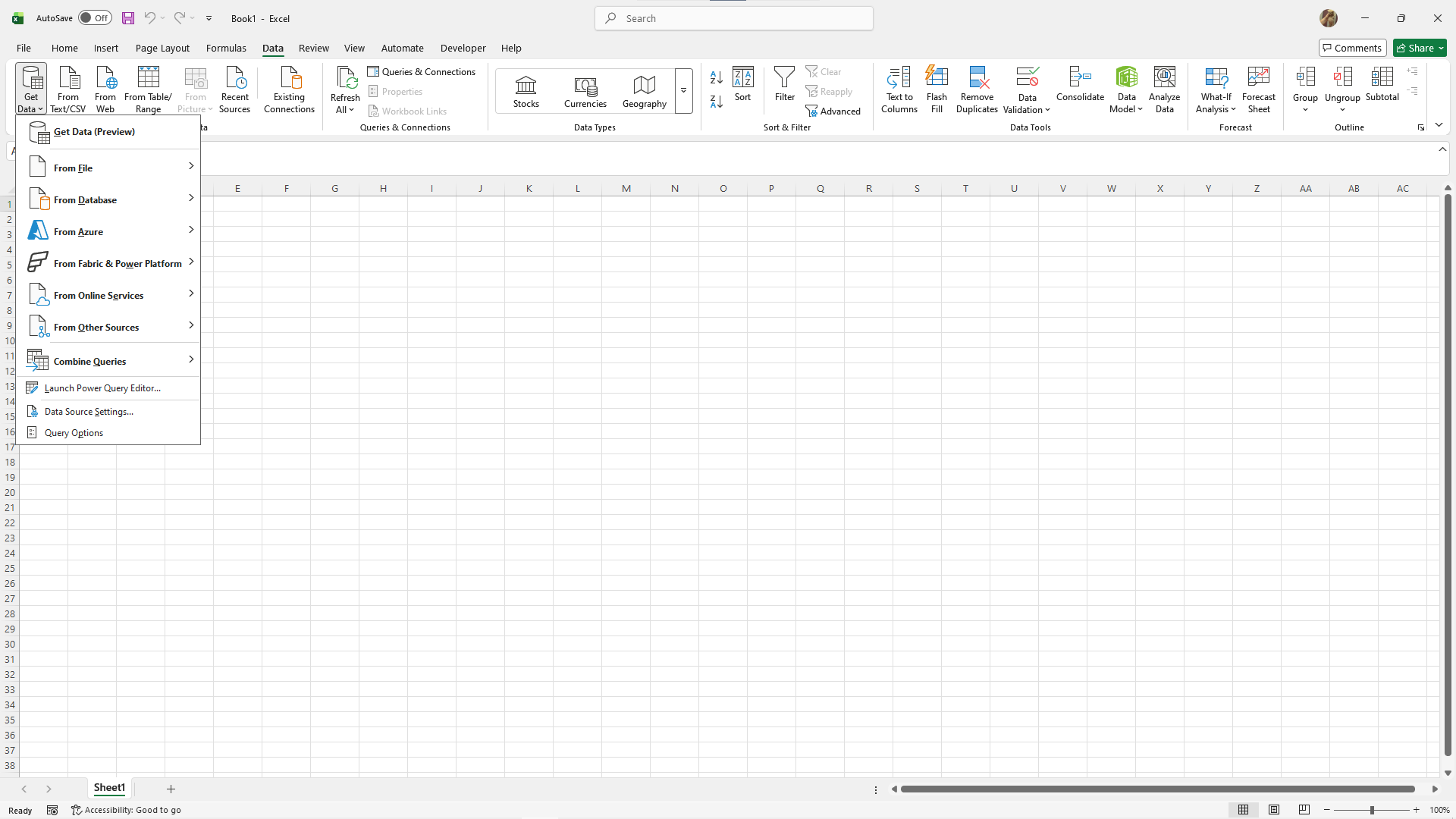
- Open Excel and go to Data.
- Select Get Data, then From Database, then From SQLite Database.
- Choose
autokeyboard.db. - Select a table (like
wipesorgrades). - Load to a worksheet or use Transform Data to filter first.
Older Excel
- Install a SQLite ODBC driver if required.
- Use Data - Get Data - From ODBC.
- Pick the SQLite driver and browse to the database file.
- Choose tables and load as needed.
Tips for clients
Keep data clean, consistent, and easy to explain.
Best practices
- Share exports, not the live database file.
- Include wipe status and timestamps for audit trails.
- Use consistent column names for client reports.
- Keep a copy before making any changes.
Contact us if you want a pre-built Excel template or scheduled exports.